Add subtitles to a video on Mac
Add captions to a video, transcribed on your Mac.
Most people watch short videos with the sound off, so captions aren't a nice-to-have any more, they're how your video gets watched at all. Adding subtitles means transcribing what's said and showing it as text, either burned into the picture or saved as a separate file a player can switch on. The painful part has always been the transcription: typing it by hand takes forever, and the easy web tools charge by the minute and want your audio on their servers.
The free way (if there is one)
macOS has no built-in way to generate a subtitle file from a video. The system's Live Captions shows captions on screen in real time, but it doesn't save them or attach them to a file.
macOS can show Live Captions on screen in real time, which is great for watching but doesn't save anything you can attach to a file. If you need a caption file, or captions burned into the video, there's no free built-in route, and Fileknife does it without sending your audio anywhere.
With Fileknife
Here's the same job in Fileknife, where it stays on your Mac:
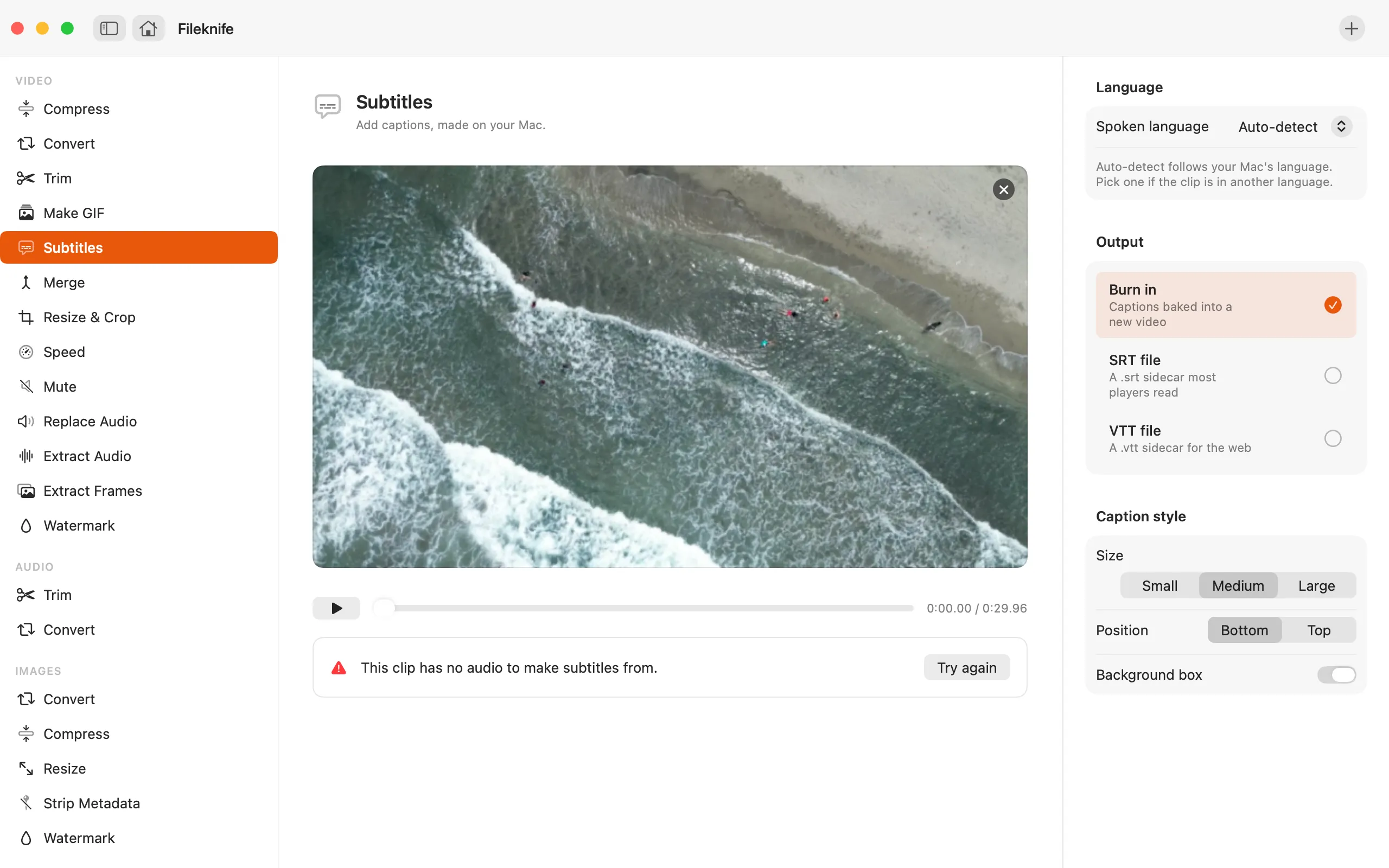
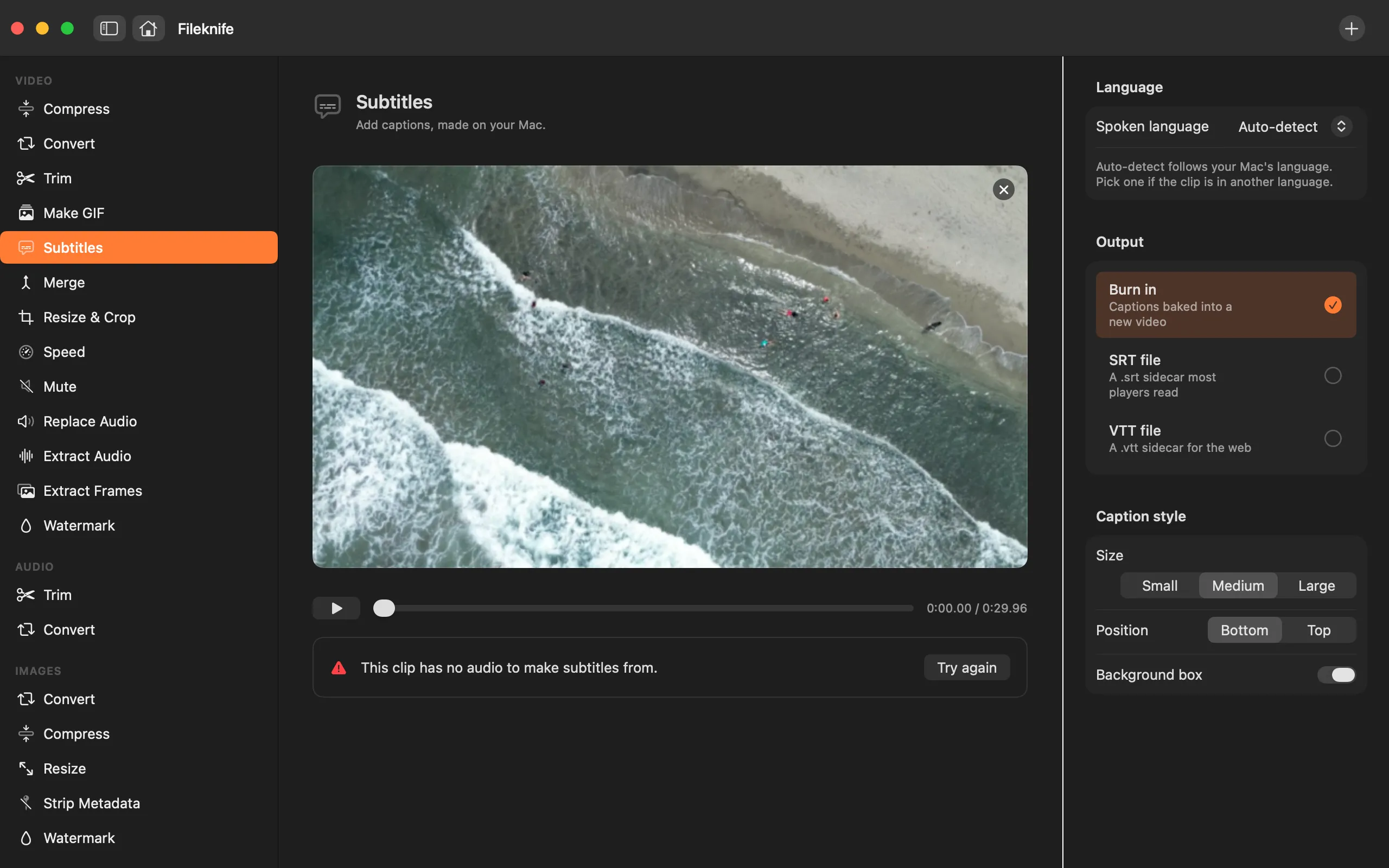
- Drop a video onto Fileknife and choose Subtitles.
- Fileknife transcribes the speech on your Mac into a caption list.
- Click any line to jump the video there, and fix wording where needed.
- Set the language and style, then choose Burn in, SRT or VTT.
- Press the export button.
Why reach for Fileknife
- Speech is transcribed on your Mac, your audio isn't uploaded to a transcription service.
- Edit the text and timing before you export.
- Export as burned-in captions, or as a separate SRT or VTT file.
- No per-minute fee like most caption sites charge.
Presets and options
- Burn in
- SRT file
- VTT file
Takes: Most common video formats (and audio, for a transcript). Gives: Video with burned-in captions, or an SRT / VTT file.
Honest limits
On macOS 14 and 15, Subtitles downloads a small speech model the first time you use it, that's the one extra network request this tool makes. Accuracy depends on clear audio; heavy background noise or overlapping speakers need manual fixes. Transcription works for the languages Apple's on-device speech supports.
FAQ
Is my audio uploaded to transcribe it?
No. Transcription runs on your Mac using Apple's on-device speech. On macOS 14 and 15 a small speech model is downloaded once; after that it works offline.
Can I get an SRT file instead of burning captions in?
Yes. You can export a separate SRT or VTT file, burn the captions into the video, or do both.
How accurate is it?
Clear speech transcribes well. Noisy audio, strong accents or several people talking at once will need some manual correction, which is why Fileknife lets you edit every line first.
What's the difference between burning in and an SRT file?
Burned-in captions are drawn into the video's pixels, so they always show, good for social, where you can't rely on a caption track. An SRT (or VTT) is a separate text file the viewer can turn on or off, and edit later. You can export either, or both.
Be the first to know when it ships · No spam · macOS 14 Sonoma or later