Make a scanned PDF searchable on Mac
Add a text layer to a scanned PDF so you can search and copy.
A scanned PDF looks like a document but behaves like a photo: you can see the words, but you can't search them, select them or copy them, because to the computer each page is just a picture. OCR, optical character recognition, reads the text in those pictures and adds it back as a real, invisible text layer. Suddenly ⌘F works, you can copy a paragraph, and other tools can read the contents. The page still looks identical; it just finally knows what it says.
The free way (if there is one)
macOS has no built-in way to add a searchable text layer to a PDF. Preview and Quick Look can select text in a scan using Live Text, but that doesn't save a searchable layer into the file, reopen it elsewhere and the text isn't there.
macOS Live Text lets you select words out of a scan on screen, which is handy in the moment but doesn't change the file, reopen it elsewhere and it's a picture again. If you need the PDF itself to stay searchable when you send or archive it, you need a saved text layer, which is exactly what this adds.
With Fileknife
Here's the same job in Fileknife, where it stays on your Mac:
- Drop the scanned PDF onto Fileknife and choose Make Searchable.
- Pick the document's language if it isn't detected.
- Press Make Searchable.
- Open the result, now you can search (⌘F), select and copy the text.
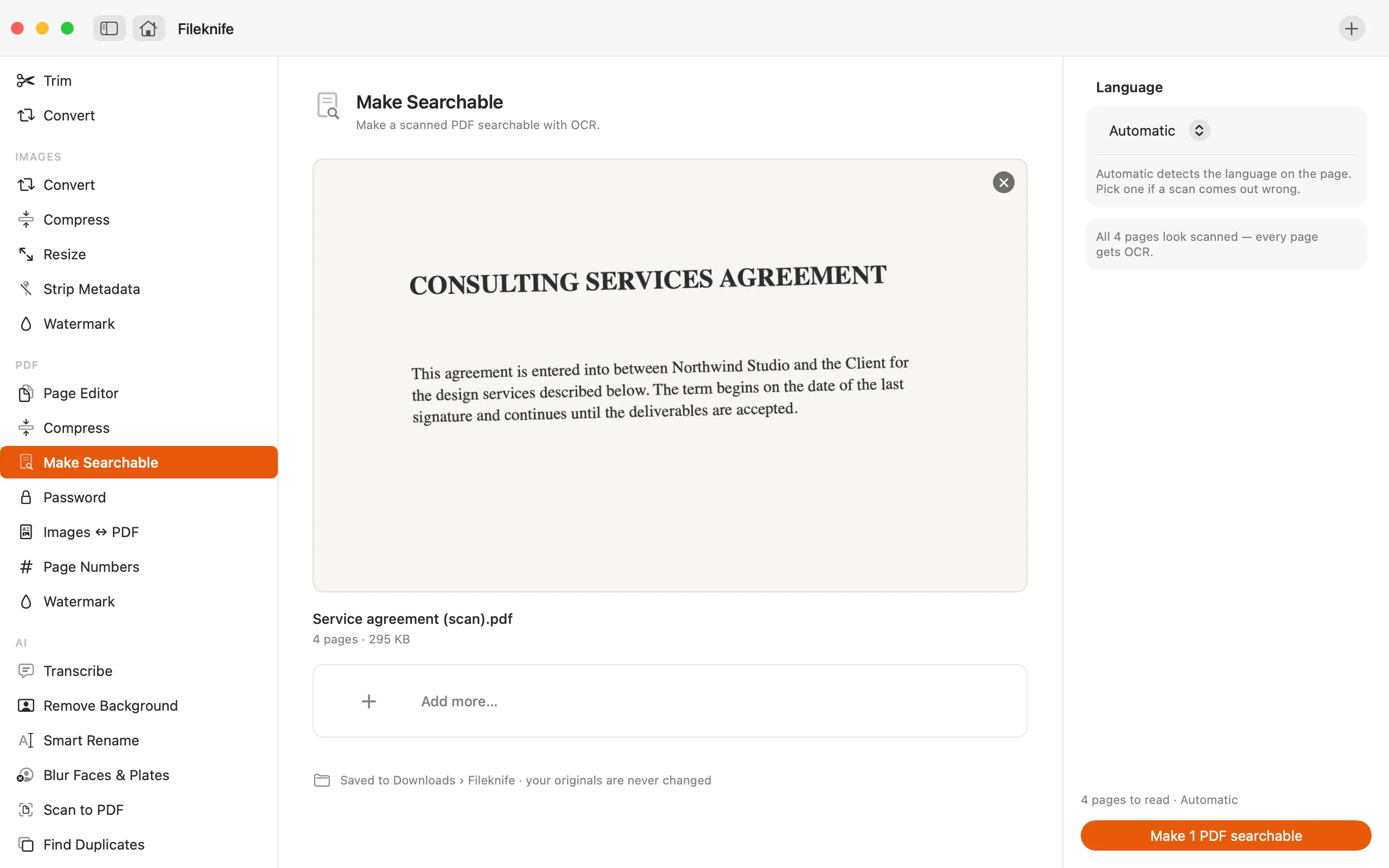

Why reach for Fileknife
- Adds a real, saved text layer, so the PDF stays searchable anywhere you open it.
- OCR runs on your Mac, your documents aren't uploaded to an OCR service.
- Keeps the page looking identical; the text layer sits invisibly behind the scan.
- Does a batch of scans in one pass.
Presets and options
- Detect language
- Choose language
Takes: PDF files (scanned or image-only). Gives: The same PDF with an added searchable text layer.
Honest limits
OCR accuracy depends on the scan: clean, straight, high-resolution pages read well; faint, skewed or handwritten pages read less well. Supported languages follow Apple's on-device text recognition.
FAQ
Isn't macOS Live Text already this?
Live Text lets you select text from a scan on screen, but it doesn't write a searchable layer into the file. Fileknife adds that layer, so the PDF stays searchable when you email it or open it on another device.
Is my document uploaded for OCR?
No. Text recognition runs on your Mac.
Will it change how the PDF looks?
No. The original scan stays exactly as it is; the text layer is invisible and sits behind the image.
Does it work on handwriting?
OCR is built for printed text and reads it well. Neat handwriting may partly work, but messy or cursive handwriting won't recognize reliably, that's a limit of the technology, not just this tool.
Be the first to know when it ships · No spam · macOS 14 Sonoma or later