Rename files from their content on Mac
Rename photos and PDFs from what's inside them.
A download folder full of scan_0007.pdf and IMG_4821.HEIC tells you nothing. Renaming them by hand means opening each one to see what it is. Smart renaming reads what's actually inside a file, the title on a document, the text on a receipt, the subject of a photo, and names it from that, so "scan_0007.pdf" becomes "Rental Agreement.pdf". It's the difference between a folder you can search and a folder you have to open file by file.
The free way (if there is one)
Finder's batch rename (select → Rename) is free and good for patterns, find-and-replace, adding text, or a number sequence. It renames by rule, not by what's inside the file, so it can't name a scan from its title or a photo from its subject.
Finder can batch-rename for free (select files → right-click → Rename), but only with patterns: find-and-replace, add text, or a number sequence. It can't look inside a file. Fileknife names each file from its own content, which is the part Finder can't do.
With Fileknife
Here's the same job in Fileknife, where it stays on your Mac:
- Drop your photos or PDFs onto Fileknife and choose Smart Rename.
- Pick the name style: Title Case or lowercase-with-dashes.
- Turn on "Add the file's date" if you want a date prefix.
- Press Rename, you get renamed copies, old name shown next to the new one.
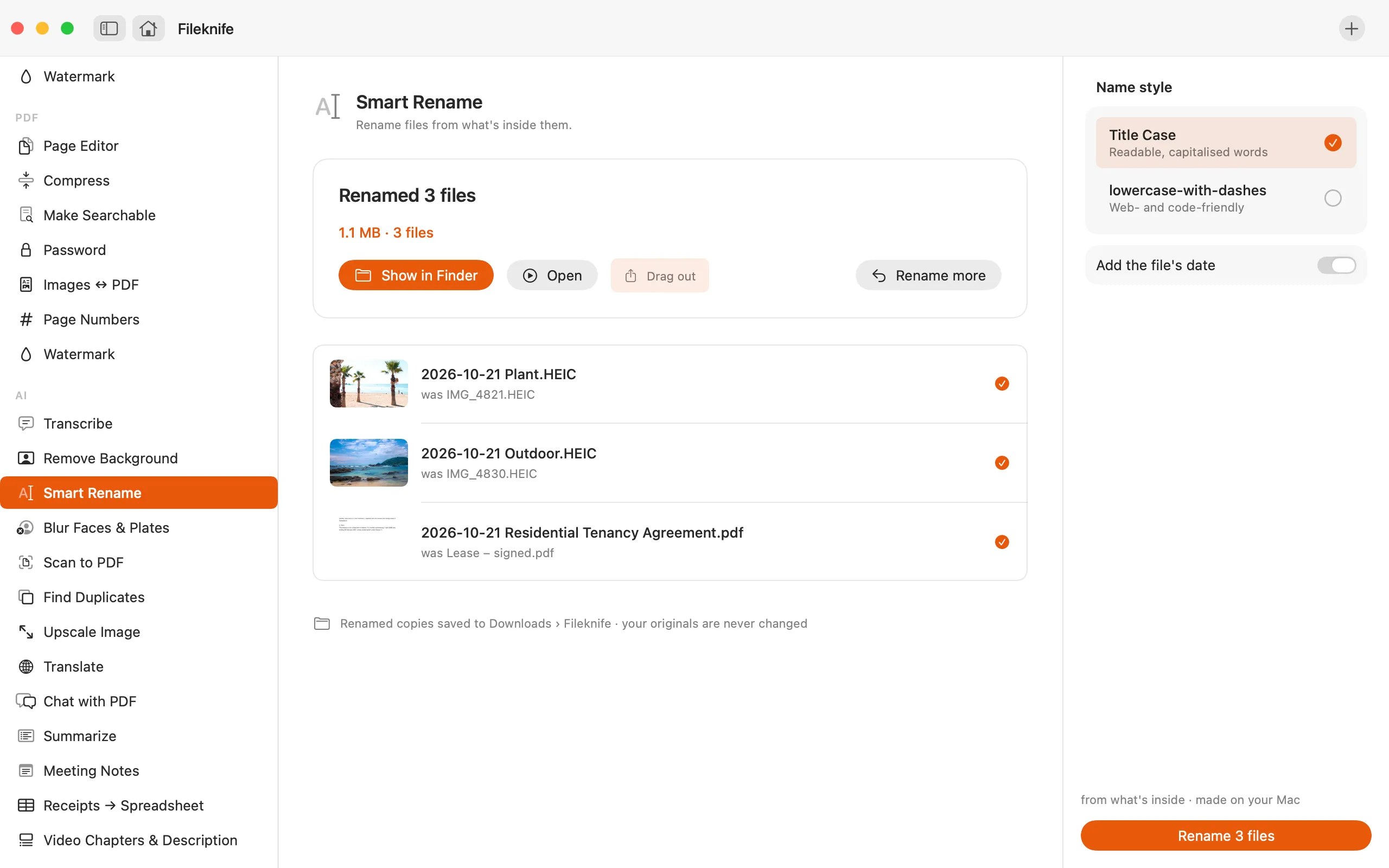

Why reach for Fileknife
- Names a file from its real content, a document's title, a receipt's text, a photo's subject, not just a pattern.
- Choose Title Case or lowercase-with-dashes, and optionally prefix the file's date.
- Saves renamed copies, so your originals are never changed.
- Reads the text on your Mac, nothing is uploaded.
Presets and options
- Title Case
- lowercase-with-dashes
Takes: Photos (HEIC, JPG, PNG) and PDFs. Gives: Renamed copies in your output folder (originals untouched).
Honest limits
A file needs something to name it by, readable text in a PDF or photo, or a recognisable subject in a photo. A blank page or a featureless image can't be named and is left for you. Smart Rename makes renamed copies rather than renaming files in place, so your originals stay put.
FAQ
Does it rename my original files?
No. Fileknife saves renamed copies in its output folder and leaves your originals exactly where they are.
How does it decide the name?
For a PDF it uses the document's text (its title or first line, or OCR for a scan). For a photo it uses any text in the image, falling back to what the photo is of.
Can it add the date?
Yes. Turn on the date option and each name is prefixed with the file's date, e.g. 2026-10-19, handy for receipts and documents.
Is anything uploaded?
No. The text and image are read on your Mac.
Be the first to know when it ships · No spam · macOS 14 Sonoma or later