Resize an image on Mac
Resize a photo to new dimensions, or a whole folder at once.
Full-size photos are overkill for most things they're used for: a 4000-pixel image for a 1200-pixel website slot, a camera folder that needs to be email-friendly, avatars that should all be the same size. Resizing changes a photo's pixel dimensions. The part that saves real time is doing a whole folder to one rule,"longest side 1600", rather than one at a time.
The free way (if there is one)
Preview resizes one image for free (Tools → Adjust Size) and does it well. It works a file at a time, so a folder of photos means repeating the steps for each one.
Preview resizes an image for free (Tools → Adjust Size), and for one photo it's perfect. Fileknife is for a batch, a consistent longest-side or percentage rule, and keeping photos from being scaled up past their real size.
With Fileknife
Here's the same job in Fileknife, where it stays on your Mac:
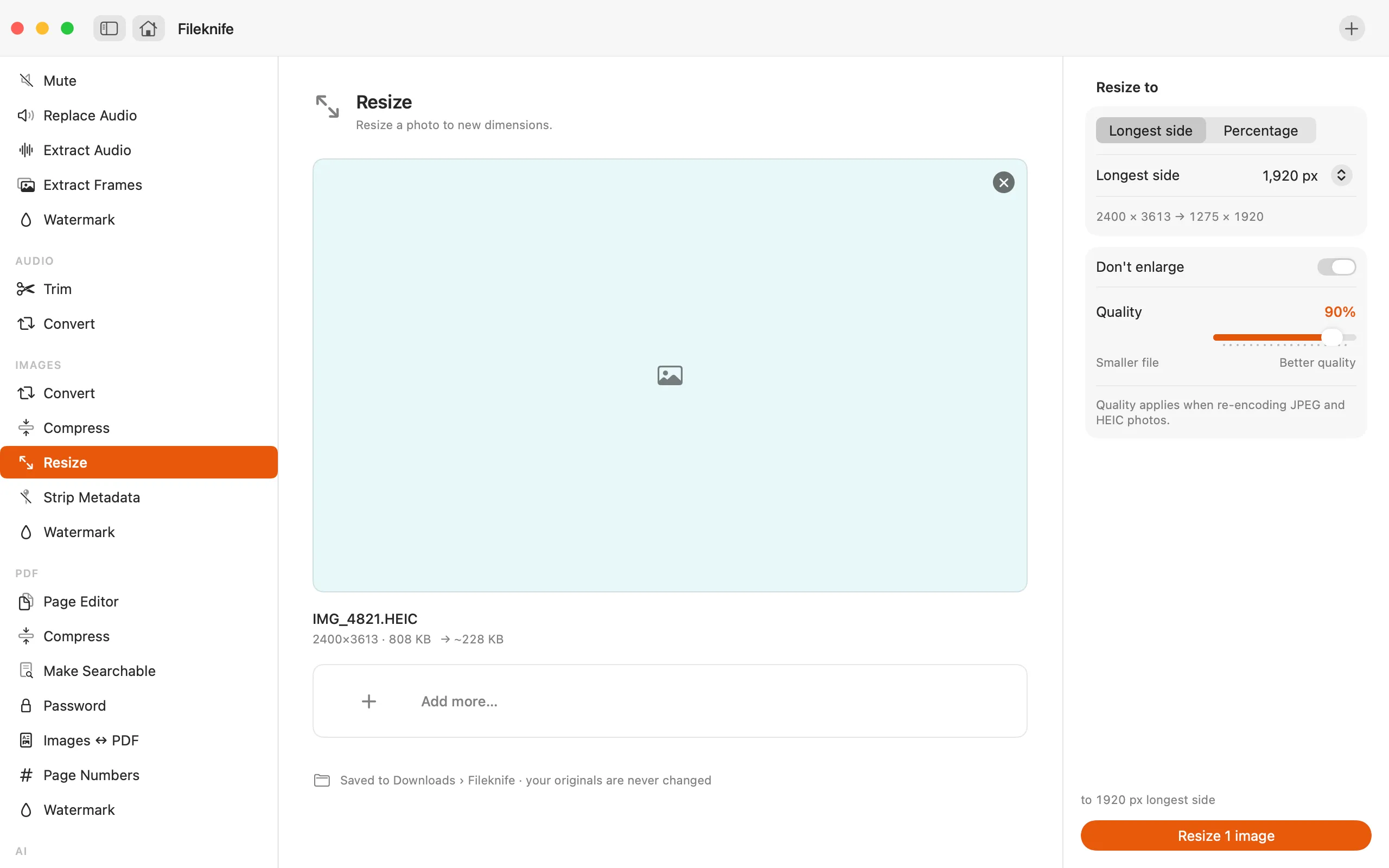
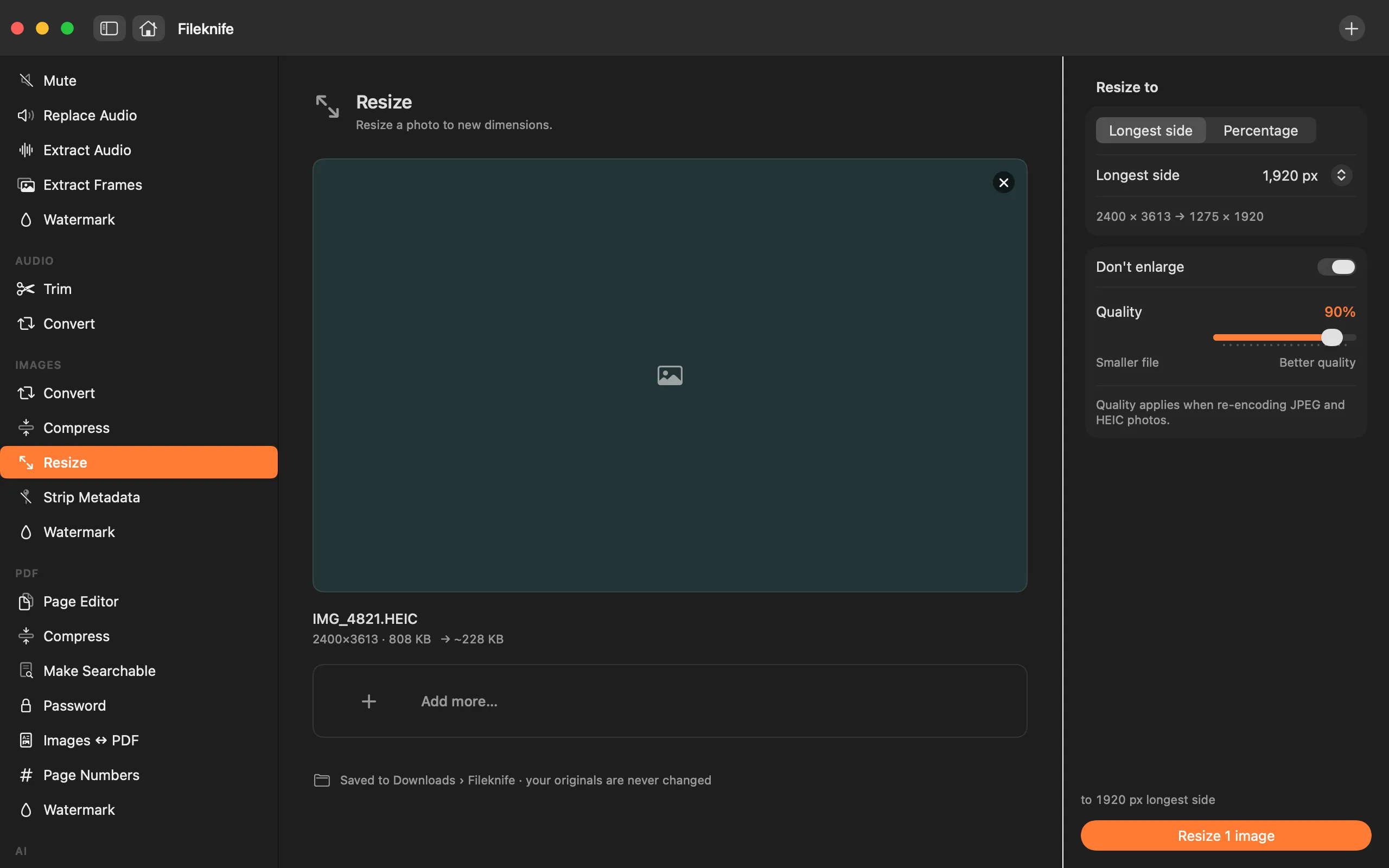
- Drop your photos onto Fileknife and choose Resize.
- Pick Longest side (with a preset or your own number) or Percentage.
- Leave "don't enlarge" on to avoid scaling small photos up.
- Press the button, the whole batch is resized together.
Why reach for Fileknife
- Resize to a longest-side target or a percentage, with handy presets.
- Do a whole folder in one pass, to the same rule.
- Aspect ratio is always kept, and photos aren't enlarged past their original size by default.
- Runs on your Mac, nothing is uploaded.
Presets and options
- Longest side: 640 / 1024 / 1280 / 1920 / 2560 / 3840
- Percentage
Takes: JPG, PNG, HEIC, WebP and other common image formats. Gives: Same format as the input, at the new size.
Honest limits
Resizing down is clean; enlarging can't add detail the photo never had, so Fileknife won't scale a photo up past its original size unless you turn that off. The aspect ratio is always preserved, it resizes rather than cropping to a shape.
FAQ
Can I resize a whole folder of photos at once?
Yes. Drop them all in and set one rule, a longest side or a percentage, and the whole batch is resized together.
What's the difference between resize and compress?
Resize changes the pixel dimensions. Compress keeps the dimensions and squeezes the file size. You can resize here and compress with the Compress Image tool.
Will it stretch my photos?
No. The aspect ratio is always kept, so photos keep their proportions. To change the shape you'd crop, which is a different job.
Is anything uploaded?
No. Resizing runs on your Mac.
Be the first to know when it ships · No spam · macOS 14 Sonoma or later