Convert audio to MP3, M4A, WAV or AIFF on Mac
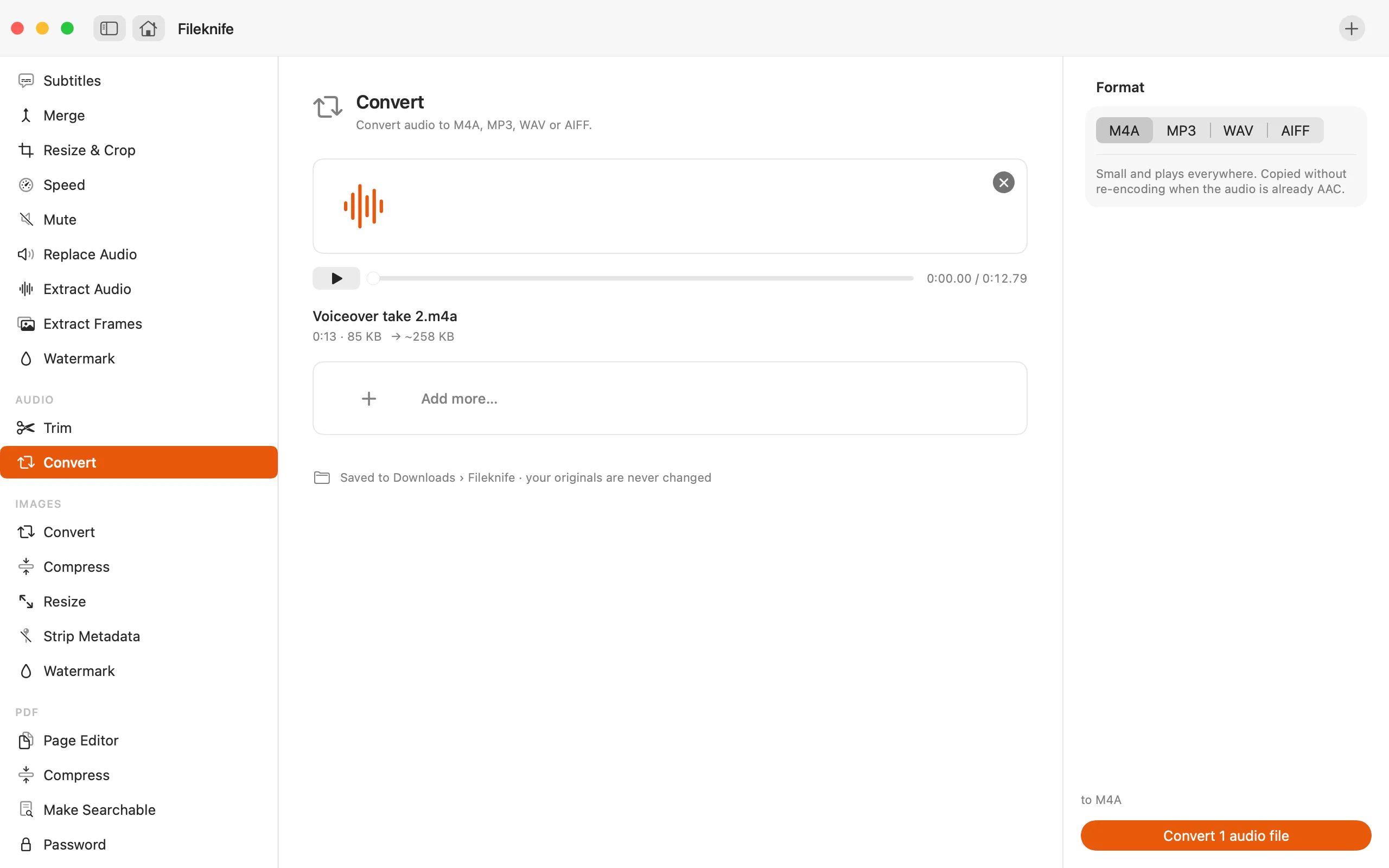
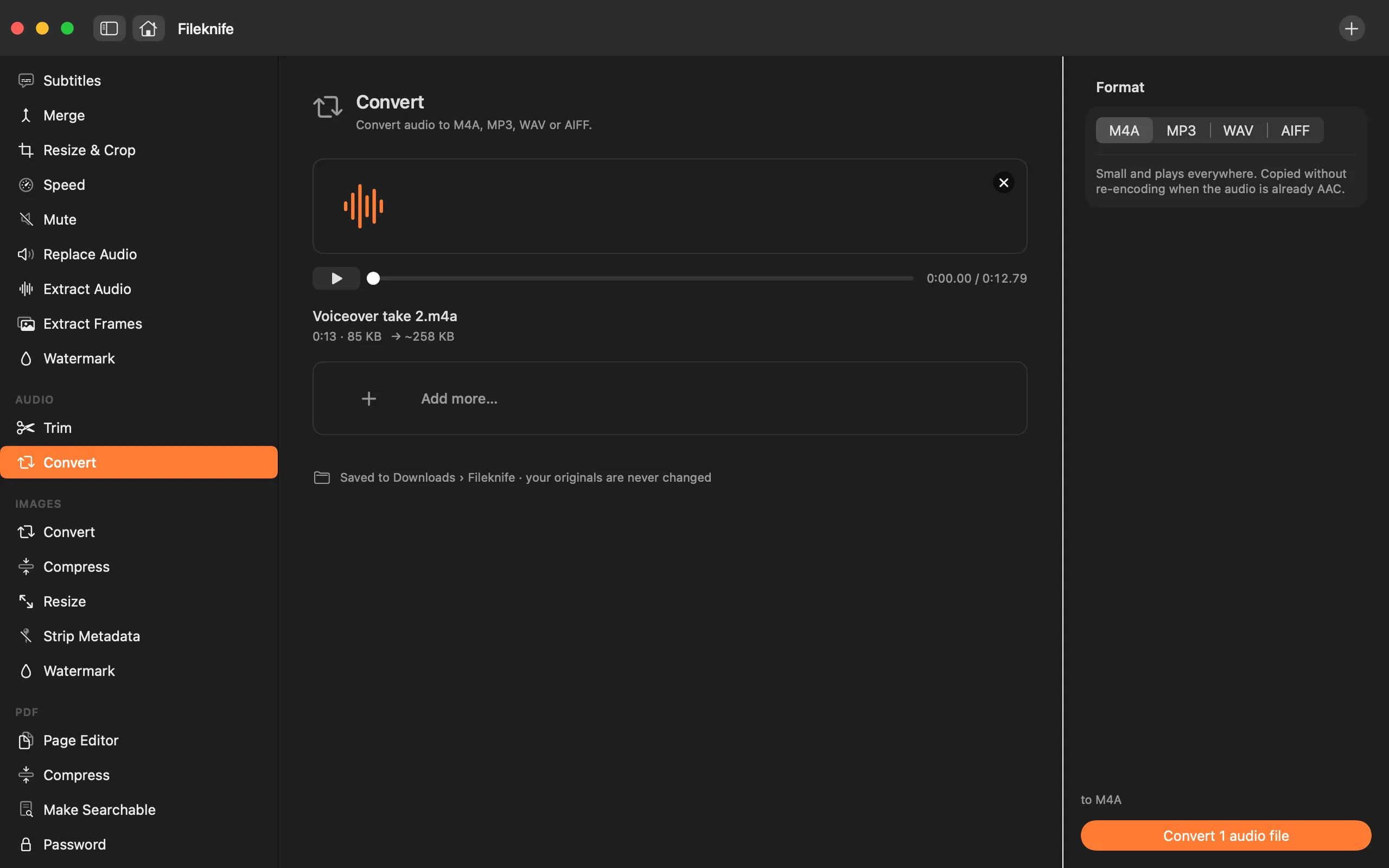
Convert audio to M4A, MP3, WAV or AIFF.
Audio formats trip people up constantly: a WAV that's too big to send, an M4A a device won't play, a file that needs to be a plain MP3 for an upload that expects one. Converting audio re-encodes it into the format the thing on the other end wants. The two that matter most are MP3, which plays on anything, and M4A, which is small and good quality.
The free way (if there is one)
The Music app can convert between a handful of formats for free via its import settings (Settings → Files → Import Settings, then File → Convert). It's workable but fiddly, and tied to your music library.
The Music app can convert between a few formats for free through its import settings, if you're happy going through its preferences. Fileknife is for a direct convert, pick a format, press the button, with MP3 output and a batch.
With Fileknife
Here's the same job in Fileknife, where it stays on your Mac:
- Drop your audio files onto Fileknife and choose Convert.
- Pick the output format: M4A, MP3, WAV or AIFF.
- For MP3, choose a quality preset (VBR or a fixed bitrate).
- Press Convert, then use Show in Finder or drag the files out.
Why reach for Fileknife
- Convert to M4A, MP3, WAV or AIFF directly, without going through a music library.
- MP3 is encoded on your Mac with the bundled LAME encoder, with VBR and CBR quality presets.
- Already-AAC audio is copied to M4A without re-encoding.
- Convert a whole batch in one pass, all on your Mac.
Presets and options
- M4A
- MP3
- WAV
- AIFF
Takes: MP3, M4A, WAV, AIFF and most common audio formats. Gives: M4A, MP3, WAV or AIFF.
Honest limits
Converting a compressed file (like M4A or MP3) to another compressed format re-encodes it, which can't recover quality already lost, convert from the highest-quality source you have. WAV and AIFF are uncompressed, so they're much larger.
FAQ
How do I convert a WAV to an MP3?
Drop the WAV in, choose Convert, pick MP3 and a quality preset, and press Convert. The MP3 is encoded on your Mac with LAME.
Which format should I pick?
MP3 plays on anything. M4A is smaller at the same quality and great for Apple devices. WAV and AIFF are uncompressed, for editing.
Will converting lose quality?
Re-encoding one lossy format to another can lose a little quality. Converting to WAV or AIFF is lossless, and already-AAC audio copied to M4A isn't re-encoded at all.
Is anything uploaded?
No. Conversion runs on your Mac.
Be the first to know when it ships · No spam · macOS 14 Sonoma or later