Compress a PDF on Mac
Make a heavy PDF small enough to email.
Scanned PDFs are quietly enormous. A signed contract, a passport copy, a stack of receipts photographed page by page, each one is really a pile of high-resolution images, and the file balloons to tens of megabytes. Then the portal says "max 10 MB" or the email bounces. Compressing a PDF shrinks those images inside it so the document still reads fine but weighs a fraction of what it did.
The free way (if there is one)
Preview can shrink a PDF for free using the "Reduce File Size" Quartz filter (File → Export → Quartz Filter). It works, but the one built-in filter is aggressive and often softens images more than you'd like, with no control over how far it goes.
Preview can shrink a PDF for free with its "Reduce File Size" Quartz filter, and for a rough pass that works. The trouble is there's only the one filter, it's heavy-handed, and you get no say in how far it goes. Fileknife lets you choose the level and see the result first.
With Fileknife
Here's the same job in Fileknife, where it stays on your Mac:
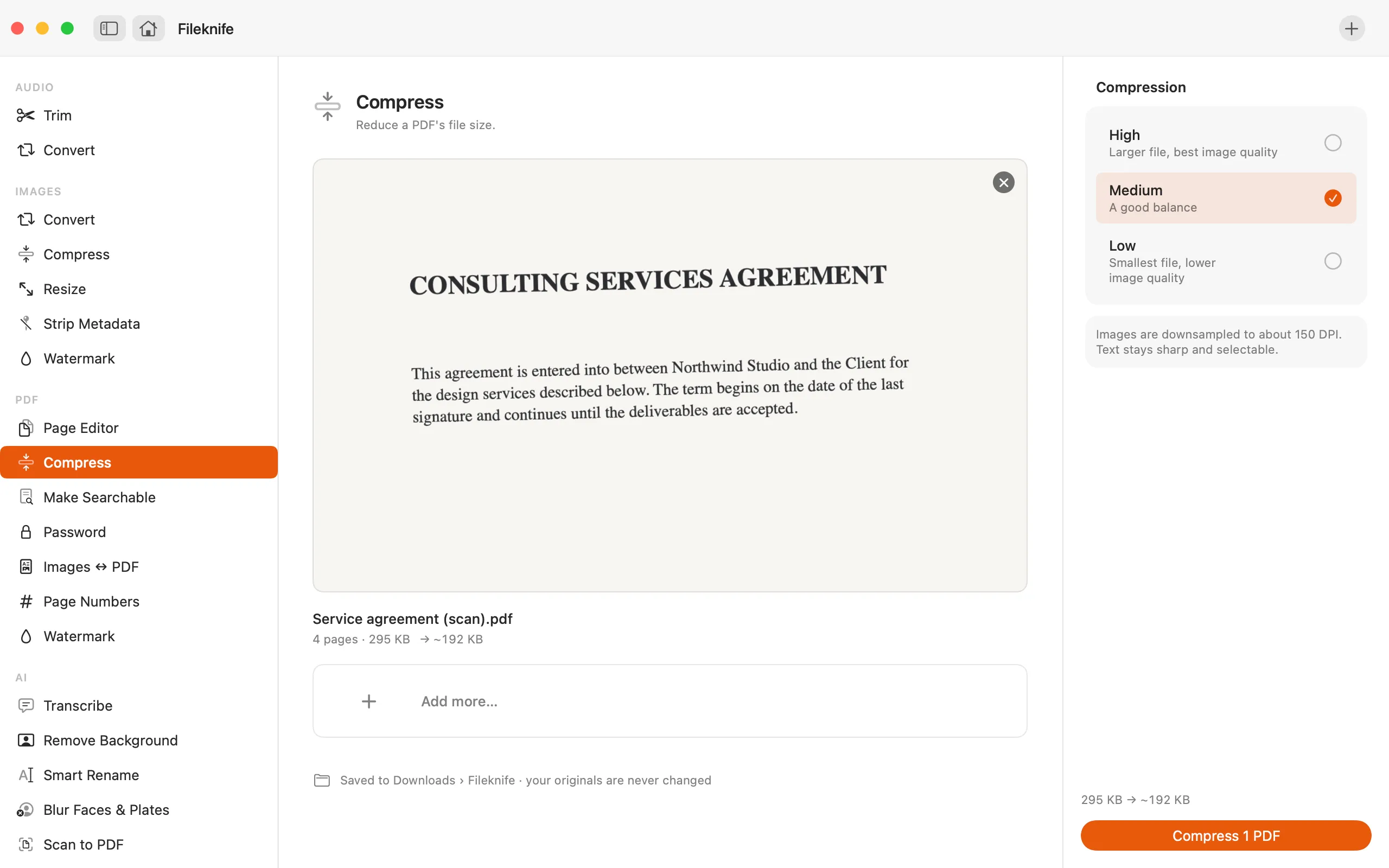
- Drop the PDF onto Fileknife and choose Compress.
- Pick a compression level (more compression = smaller, softer images).
- Check the before → after size.
- Press Compress and send it.
Why reach for Fileknife
- Choose how hard to compress instead of the single built-in Preview filter.
- See the before → after size, so you know it fits before you send.
- Compress several PDFs in one pass.
- Runs on your Mac, no upload to a site with a file-size cap.
Presets and options
- Email-ready
- Balanced
- Smallest
Takes: PDF files. Gives: A smaller PDF.
e.g. a 40 MB scanned contract → about 4 MB for email (illustrative; depends on the scans).
Honest limits
Most of a PDF's size is usually scanned pages or photos; Fileknife shrinks those. A PDF that's mostly text is already small and won't compress much. Heavy compression visibly softens images, the result preview shows you before you keep it.
FAQ
Why didn't my PDF get much smaller?
If it's mostly text it's already small, there's little to compress. The big savings come from PDFs full of scanned pages or high-resolution photos.
Does compressing lower the quality?
It downsamples the images inside, so heavy compression softens them. Fileknife shows the result so you can pick a level you're happy with.
Will the text still be selectable after compressing?
Yes. Compression works on the images in the PDF, not the text layer, so any selectable or searchable text stays exactly as it was.
Be the first to know when it ships · No spam · macOS 14 Sonoma or later