Convert HEIC to JPG on Mac
Turn iPhone HEIC photos into JPG, PNG or WebP.
Your iPhone saves photos as HEIC, a newer format that keeps quality at half the file size. That's great until you send one to someone on Windows, upload it to a site that's never heard of it, or hand it to an older app, and it won't open. Converting HEIC to JPG (or PNG, or WebP) turns it into a format everything understands. The only real question is doing it to a whole camera roll's worth at once, without them losing their dates.
The free way (if there is one)
Finder can do this for free: select your HEIC photos, right-click → Quick Actions → Convert Image, and pick JPEG or PNG. It's a great option for a quick batch. It doesn't offer WebP, and it doesn't let you set a target file size or resize while converting.
For a quick batch, Finder's built-in Convert Image Quick Action (right-click → Quick Actions) is free and does JPEG or PNG well, genuinely, use it. Fileknife is the better tool when you want WebP, when you want to set quality or a target size, or when you want to resize in the same pass.
With Fileknife
Here's the same job in Fileknife, where it stays on your Mac:
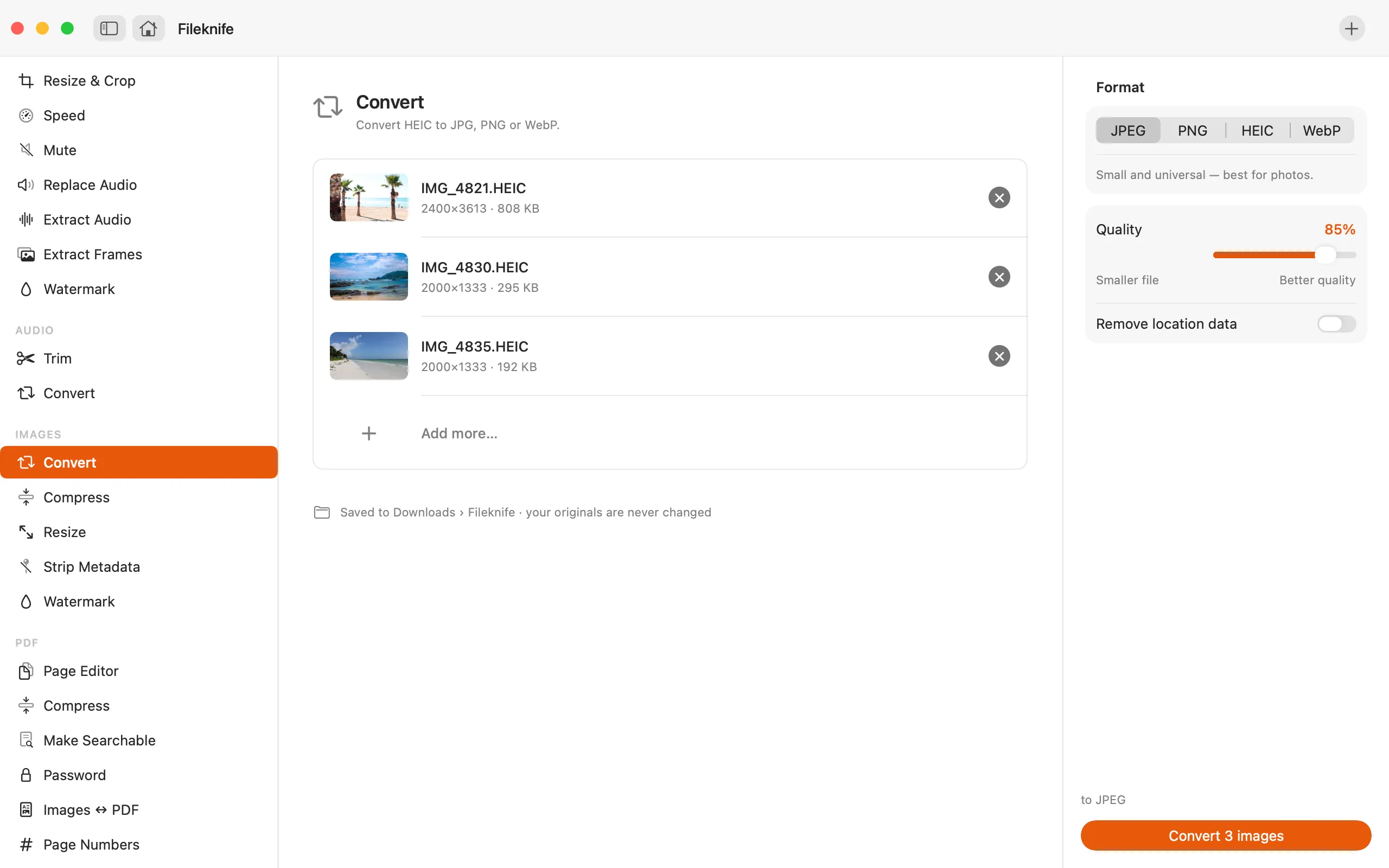
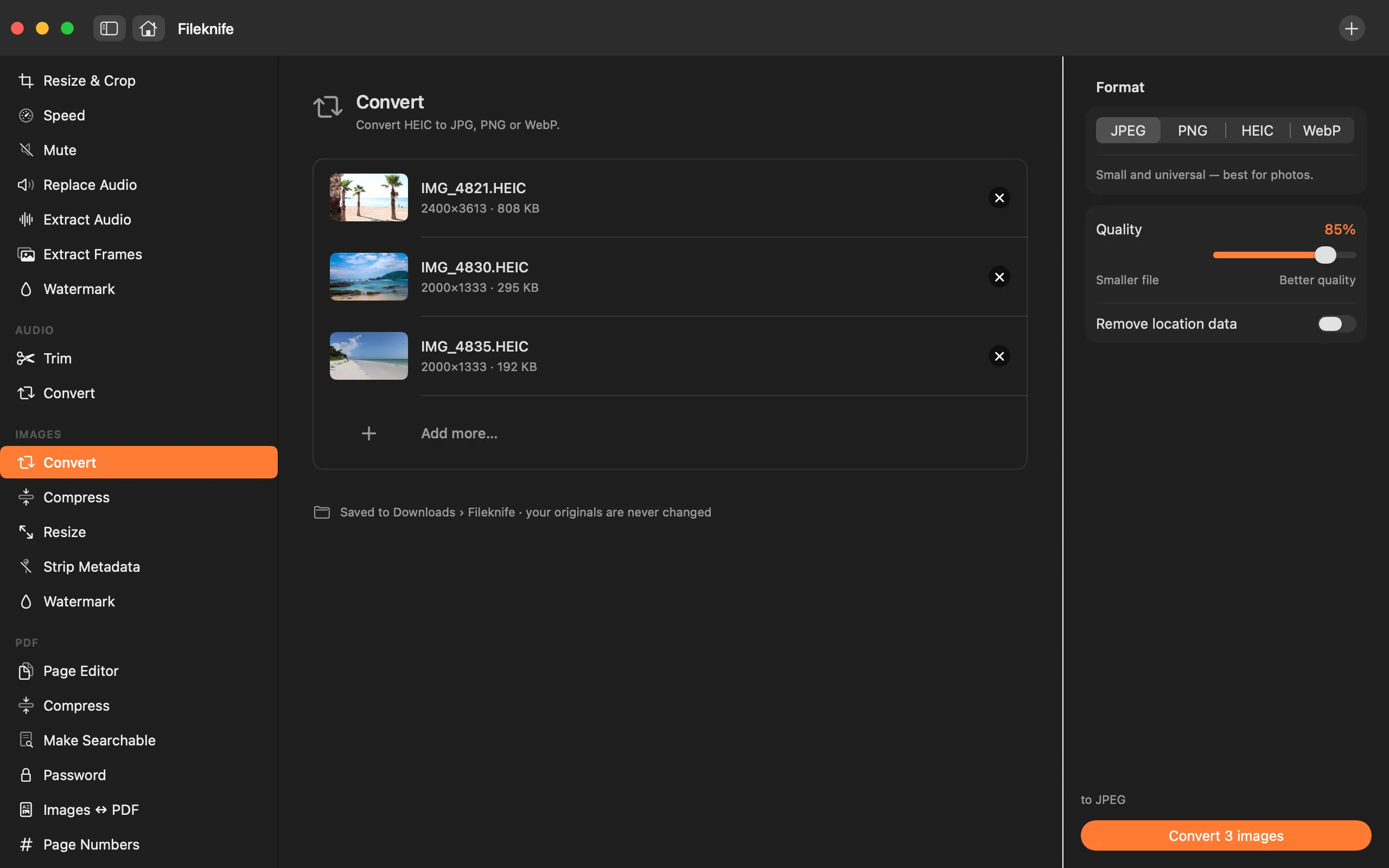
- Drop your HEIC photos onto Fileknife and choose Convert.
- Pick the output format: JPG, PNG or WebP.
- Set quality (and resize, if you want) in the inspector.
- Press Convert, the whole batch is done together.
Why reach for Fileknife
- Convert to WebP as well as JPG and PNG, Finder's Quick Action can't do WebP.
- Set JPEG quality or a target size while you convert, instead of a fixed guess.
- Resize in the same pass, so you're not converting then resizing separately.
- Keeps the photo's date taken so your library stays in order.
Presets and options
- JPG
- PNG
- WebP
Takes: HEIC, HEIF, and other common image formats. Gives: JPG, PNG or WebP.
e.g. a folder of 120 HEIC photos → 120 JPGs in one pass.
Honest limits
HEIC can hold Live Photo motion; Fileknife converts the still image, not the motion clip. Edits made in Photos are baked into the exported still.
FAQ
Can't macOS already convert HEIC?
Yes, Finder's Convert Image Quick Action converts HEIC to JPEG or PNG for free, and it's a good choice for a quick job. Fileknife adds WebP, quality and target-size control, and resize-while-converting.
Does it keep the date the photo was taken?
Yes. The capture date is preserved so converted photos stay in order in your library.
Will my photos be uploaded?
No. Conversion runs on your Mac. Nothing is uploaded.
JPG or WebP, which should I pick?
JPG opens literally everywhere, so it's the safe choice for sending a photo to someone. WebP makes a smaller file at the same quality and works well for a website, but a few older apps still can't open it.
Be the first to know when it ships · No spam · macOS 14 Sonoma or later