Merge, split and reorder PDF pages on Mac
Merge, split, reorder, delete and rotate PDF pages.
PDFs arrive in the wrong shape all the time: three separate files that should be one, a ten-page scan where you only need pages four to six, a document with a page upside down. Editing PDF pages, merging, splitting, reordering, rotating, deleting, is about getting the pages into the order and the files you actually want to send. For a big batch, or for splitting one file into several, the usual options are either a narrow sidebar or a website you have to upload to.
The free way (if there is one)
Preview already does a lot of this for free: open a PDF, show the thumbnail sidebar, and you can drag to reorder, delete pages, rotate, and drag pages from one PDF into another to merge. It's genuinely capable, and for a quick merge it's all you need. It gets fiddly with many files, splitting into several new documents, or doing the same edit across a batch.
Preview handles the common cases for free and does them well, drag pages between two PDFs to merge, delete a page, rotate one. If that covers you, there's no reason to reach for anything else. Fileknife is for when it gets fiddly: many files at once, splitting into several documents, or wanting a full-window page grid instead of a thumbnail rail.
With Fileknife
Here's the same job in Fileknife, where it stays on your Mac:
- Drop your PDFs onto Fileknife's Page Editor.
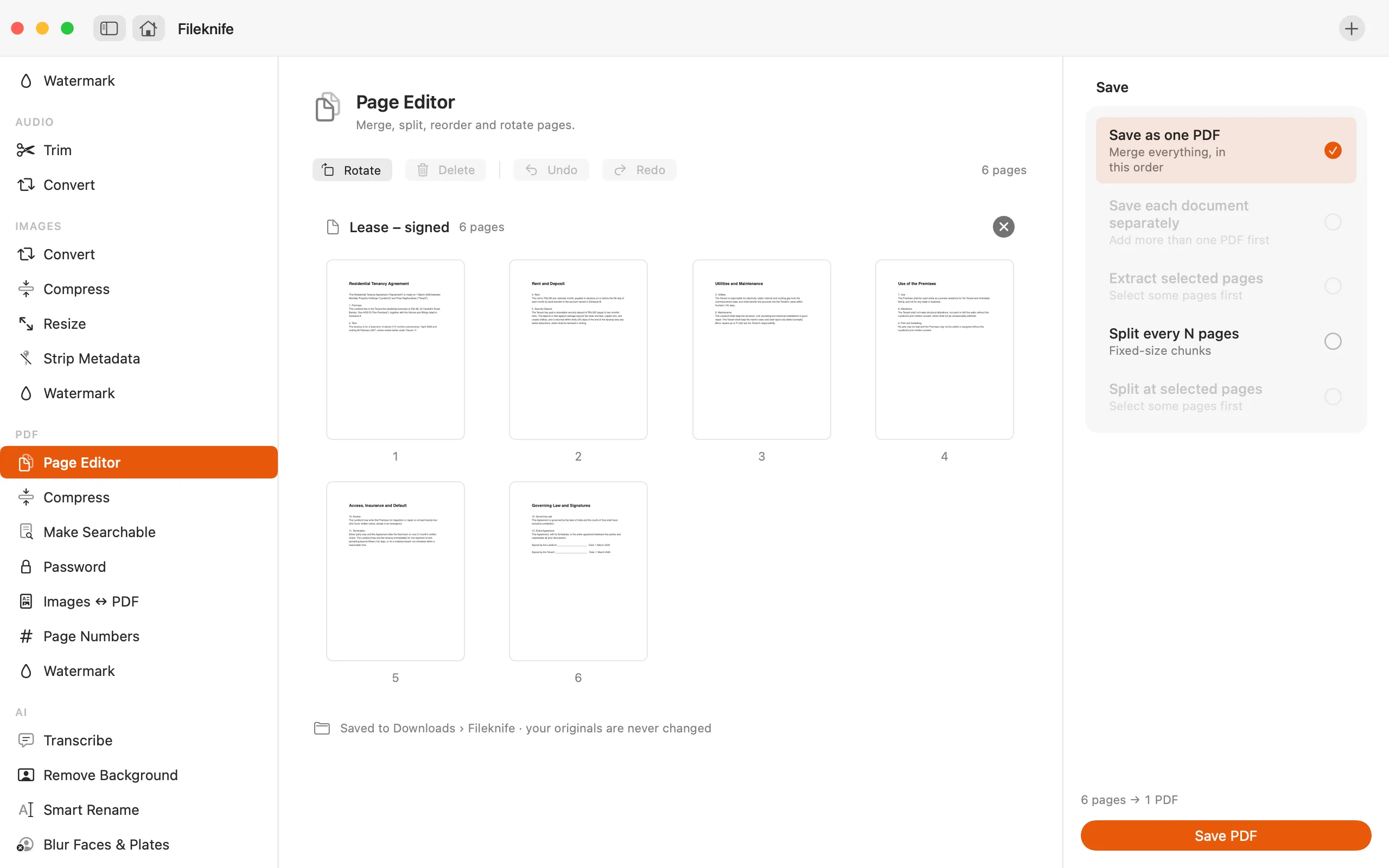
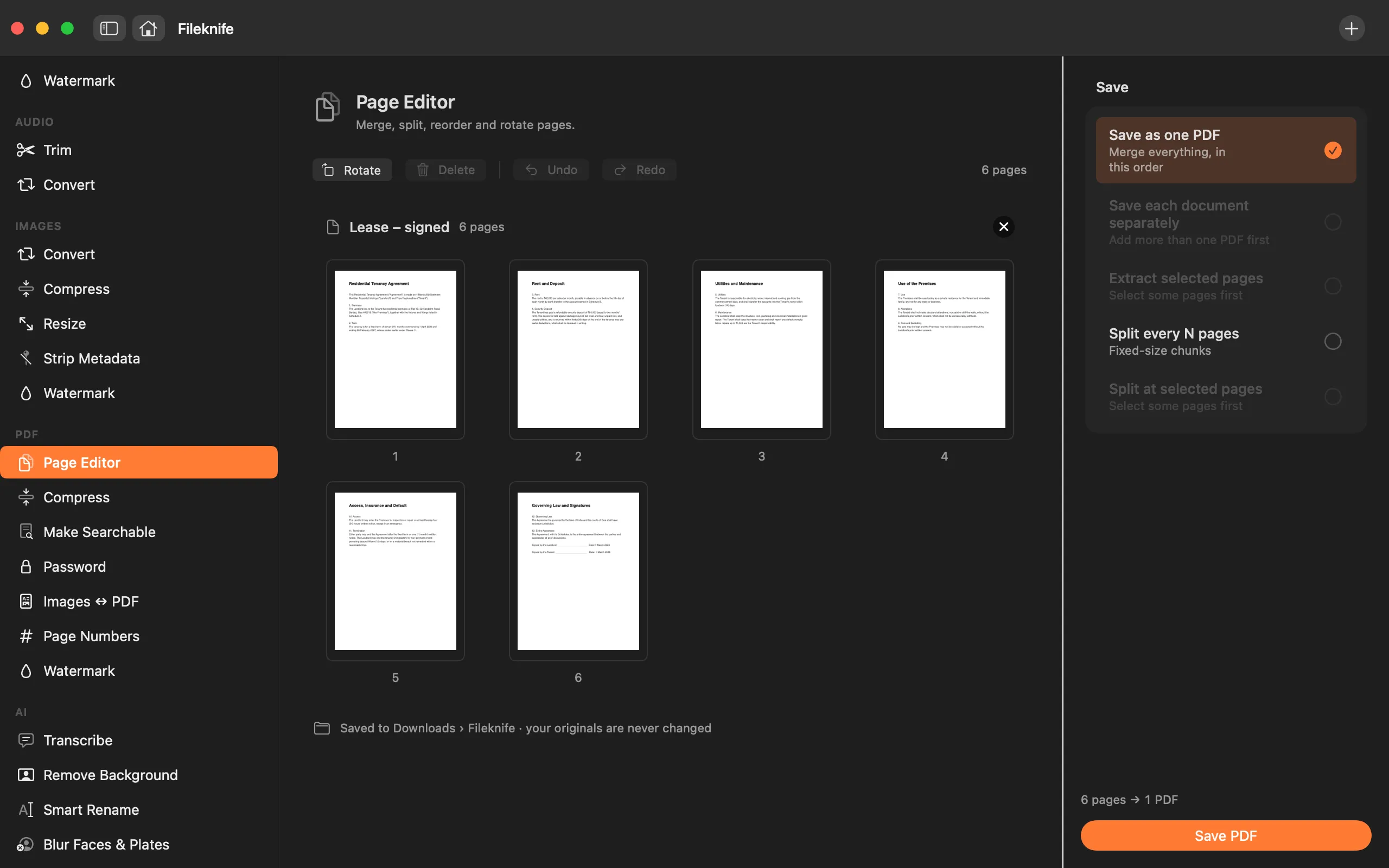
- See every page in one grid, grouped by document.
- Drag pages to reorder, or drag between documents to merge.
- Select pages to delete, rotate (⌘R), extract or split.
- Export the result as one PDF or several.
Why reach for Fileknife
- A full-window page grid across several PDFs at once, instead of a narrow thumbnail sidebar.
- Split one PDF into several documents in one step, not by exporting ranges by hand.
- Reorder and merge by dragging pages between documents, with clear document bands.
- Everything runs on your Mac, no upload to a web PDF tool that caps file size.
Presets and options
- Merge into one
- Split into separate PDFs
- Extract selected pages
Takes: PDF files. Gives: One PDF, or several PDFs.
Honest limits
The Page Editor works on whole pages, reorder, merge, split, rotate, delete and extract. Editing the text or images inside a page is a different job and isn't what this tool does.
FAQ
Can't Preview already merge PDFs?
Yes, and for a quick merge it's the right tool, drag pages between two PDFs in the thumbnail sidebar. Fileknife is for when that gets awkward: many files at once, splitting into several documents, or a full page grid rather than a narrow sidebar.
How do I split a PDF into separate files?
Select where you want the breaks and choose Split, Fileknife writes out a separate PDF for each part in one step.
Are my PDFs uploaded?
No. Everything runs on your Mac. Online PDF tools upload your document to their server; Fileknife never does.
Can I pull just a few pages out into their own PDF?
Yes. Select the pages you want and choose Extract, Fileknife saves them as a new PDF and leaves the original alone.
Be the first to know when it ships · No spam · macOS 14 Sonoma or later