Compress video for WhatsApp, Discord and email on Mac
Compress a video down to a size that will actually send.
You filmed something on your phone, AirDropped it to your Mac, and now it won't send, WhatsApp bounces it, the email bounces it, Discord says it's too big. The clip is a couple of hundred megabytes and the app you're sending it through wants it under 16 or 25. Compressing a video means re-encoding it so it takes far fewer bytes while looking almost the same, and the trick is landing under a specific limit without doing it three times. That's exactly what this tool is for.
The free way (if there is one)
macOS has no built-in way to compress a video to a target size. QuickTime can export at 480p or 720p, but you can't ask for "under 16 MB", and you won't know the final size until it finishes.
If you only need a quick, rough size drop and don't care about hitting an exact limit, QuickTime's 720p export is free and fine. Reach for Fileknife when you need the file under a specific size on the first try, when you're sending several clips, or when you'd rather not re-export and re-check by hand.
With Fileknife
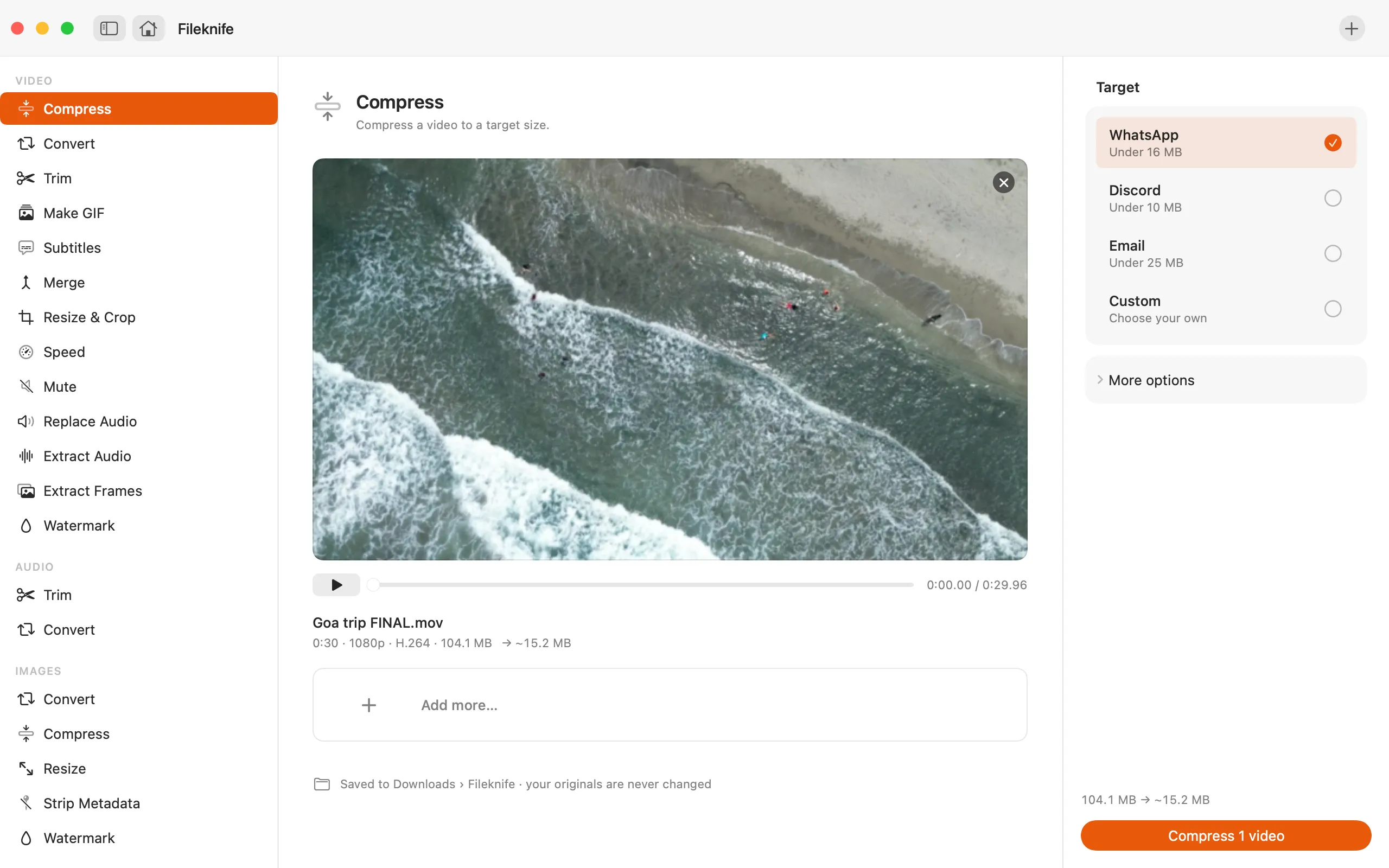
Here's the same job in Fileknife, where it stays on your Mac:
- Drop your video onto Fileknife (or right-click it in Finder → Compress).
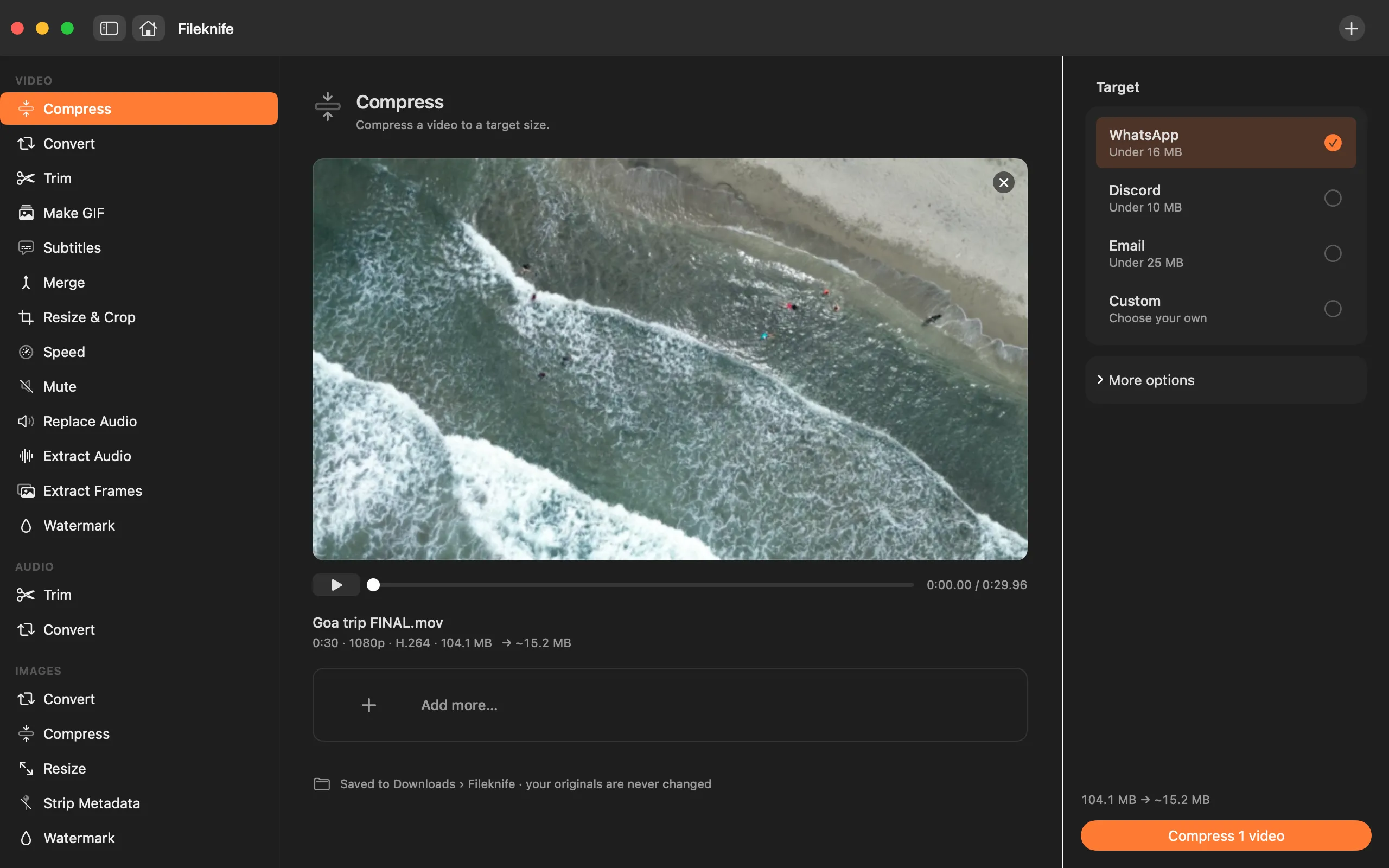
- In the inspector, choose a preset: WhatsApp, Discord, Email or Custom.
- For Custom, set a target size or quality with the slider.
- Check the estimate above the button (e.g. 104 MB → ~15 MB).
- Press Compress. Use Show in Finder, or drag the result straight into WhatsApp.
Why reach for Fileknife
- You pick the destination (WhatsApp, Discord, email) and Fileknife aims for a size under its limit.
- You see the estimated result before you start, not after.
- It compresses a whole batch of clips in one go.
- Everything happens on your Mac, the clip is never uploaded to a site with its own size cap.
Presets and options
- WhatsApp · under 16 MB
- Discord · under 10 MB
- Email · under 25 MB
- Custom target size
Takes: MP4, MOV, M4V, and most common video formats. Gives: MP4 (H.264 or HEVC).
e.g. a 104 MB phone clip → about 15 MB for WhatsApp.
Honest limits
Fileknife aims for your target size but can't guarantee an exact byte count, very short or very detailed clips may land a little under or over. DRM-protected video (e.g. purchased films) can't be compressed.
FAQ
What size does WhatsApp allow for videos?
WhatsApp caps shared videos at roughly 16 MB. The WhatsApp preset targets a size under that so the clip sends without being re-compressed to mush.
Will compressing ruin the quality?
Some quality is always traded for size, that's what compression is. Fileknife trades as little as it can for your target, and you can nudge the quality slider if you'd rather a larger, sharper file.
Does the video get uploaded anywhere?
No. Compression runs entirely on your Mac. The only time Fileknife uses the network is to check your license and look for app updates.
Can I compress several videos at once?
Yes. Drop a batch and they're compressed one after another with the same preset.
Does it use HEVC or H.264?
You can choose. H.264 plays everywhere, including older phones and apps. HEVC (H.265) reaches the same quality at a smaller size but needs a reasonably modern device to play. For WhatsApp, H.264 is the safe default.
Be the first to know when it ships · No spam · macOS 14 Sonoma or later