Remove the background from a photo on Mac
Remove the background from a photo, you choose the subject.
A clean cut-out is the start of almost every product shot, avatar, sticker and slide graphic: the subject on a transparent background you can drop onto anything. Removing the background means separating the subject from everything behind it and saving the result with transparency. The web tools that do this are good, but they upload your photo, meter you by credits, and always keep whatever subject they decide is the main one, which isn't always the one you wanted.
The free way (if there is one)
Preview and Photos can lift the subject from a photo for free (the macOS "remove background" / copy-subject feature), one image at a time. They take the whole detected subject, you can't choose between several subjects, drop a solid color behind it, or run a batch.
Preview and Photos can lift the subject from a photo for free (the macOS copy-subject / remove-background feature), one image at a time, and they always take the whole detected subject. Fileknife is for when you want to choose which subject to keep, drop a solid color behind it, or do a batch, all on your Mac.
With Fileknife
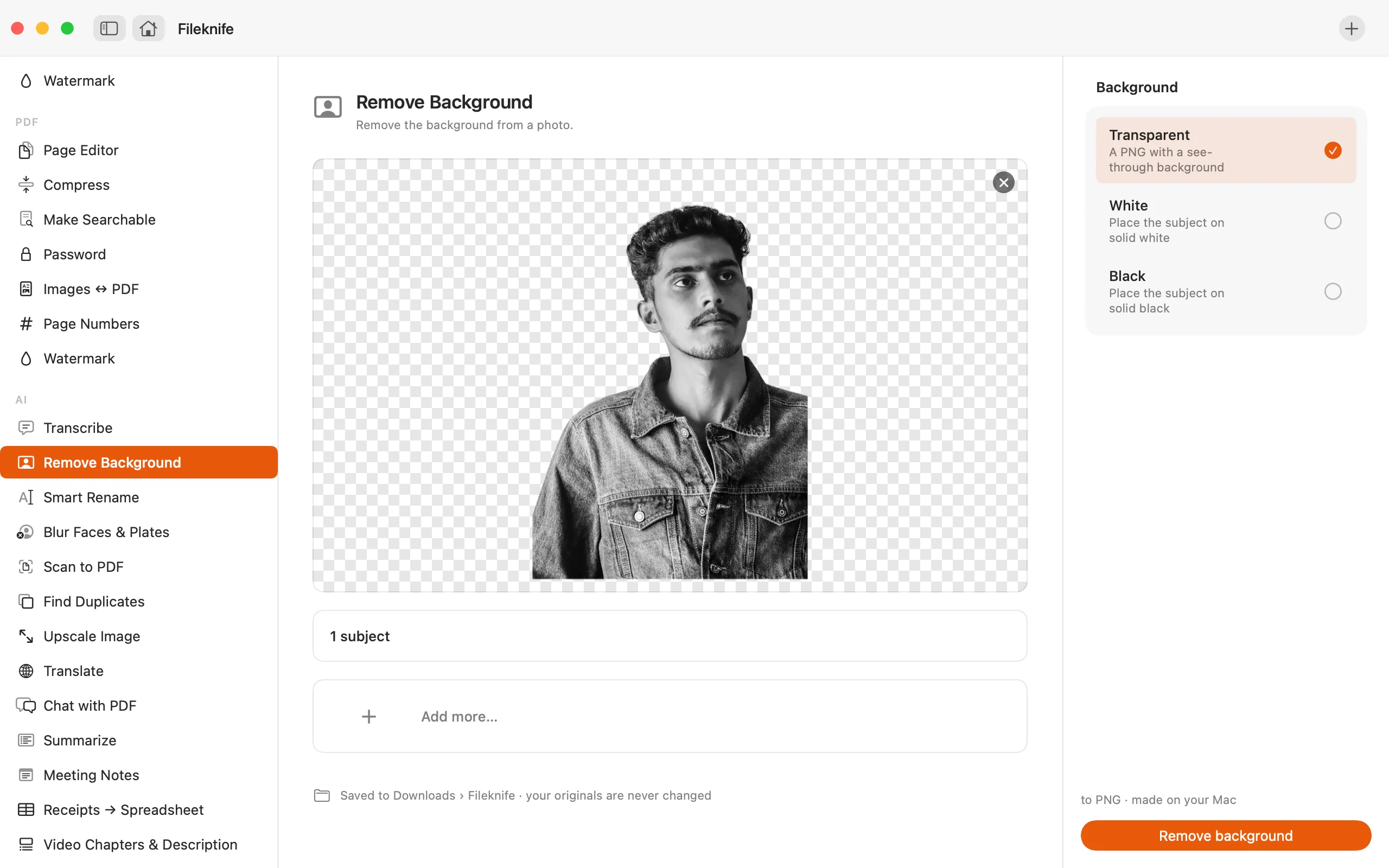
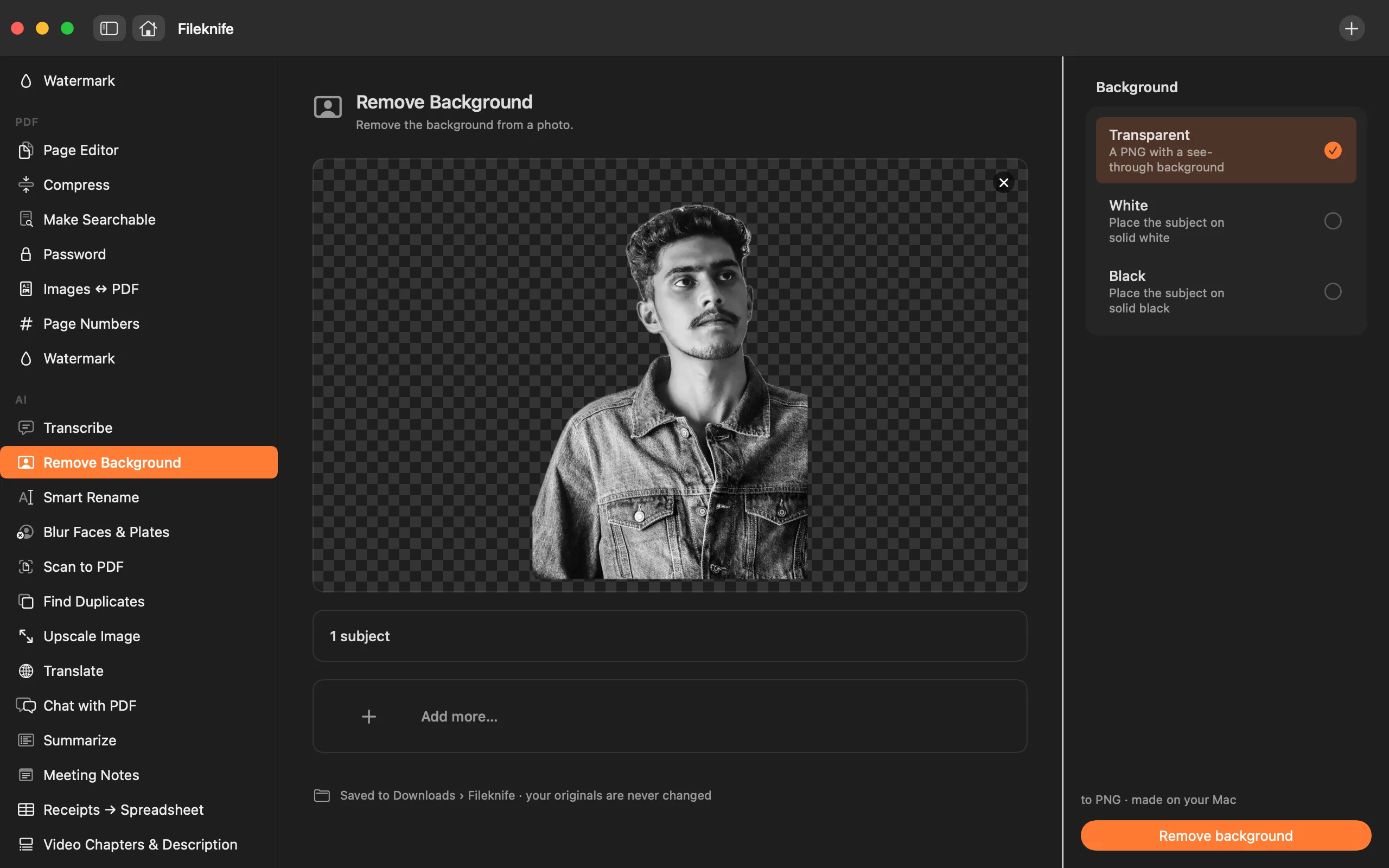
Here's the same job in Fileknife, where it stays on your Mac:
- Drop a photo onto Fileknife and choose Remove Background.
- Fileknife finds the subjects; tap a thumbnail to keep or remove each one.
- Pick the background: transparent, white or black.
- Press Remove background, then drag the PNG out or Show in Finder.
Why reach for Fileknife
- When a photo has more than one subject, you choose which to keep, not just whatever the system picks.
- Save a transparent PNG, or place the subject on solid white or black.
- A live preview shows the cut-out before you save it.
- Runs on your Mac, no upload, no credits, no subscription like the web cut-out tools.
Presets and options
- Transparent PNG
- White background
- Black background
Takes: HEIC, JPG, PNG, TIFF and other common image formats. Gives: PNG (transparent, or on a solid background).
Honest limits
Works best with a clear subject against a distinct background. Very low-contrast edges, fine strands of hair or glass can cut imperfectly, the preview shows the result first. Choosing which subject to keep is for a single photo; a batch keeps every subject.
FAQ
Can't Preview already remove a background?
Yes, for a single photo, and it's great for a quick one. Fileknife adds choosing which subject to keep when there are several, a solid-color backdrop, a live preview, and batch processing.
Is my photo uploaded?
No. The cut-out is computed on your Mac. Web tools like remove.bg upload your image; Fileknife never does.
Can I keep just one person out of a group?
Yes. Fileknife shows each detected subject as a thumbnail, tap to keep only the ones you want, and the rest become part of the removed background.
What format is the result?
A PNG, so it keeps the transparency. If you choose a white or black background instead, it's still a PNG, just with that color filled in.
Be the first to know when it ships · No spam · macOS 14 Sonoma or later