Convert a video to MP4 or MOV on Mac
Convert a video to MP4 or MOV.
A clip that won't play, won't upload, or won't import is almost always the wrong container or codec. Someone sends you a .mov that an app rejects, or a HEVC file an older device chokes on. Converting a video re-wraps or re-encodes it into a format the thing on the other end understands, most often plain MP4 with H.264, which plays just about everywhere.
The free way (if there is one)
QuickTime Player can export a clip to a handful of Apple formats for free (File → Export As), and VLC can convert between most formats if you're comfortable with its Convert/Save dialog. Neither lets you batch easily or pick a target codec yourself.
QuickTime can export to a few Apple formats (File → Export As), and VLC converts almost anything for free through its Convert dialog. Both work; VLC is just fiddly and does one file at a time. Fileknife is for a quick, predictable convert, or a whole batch, without learning a converter's menus.
With Fileknife
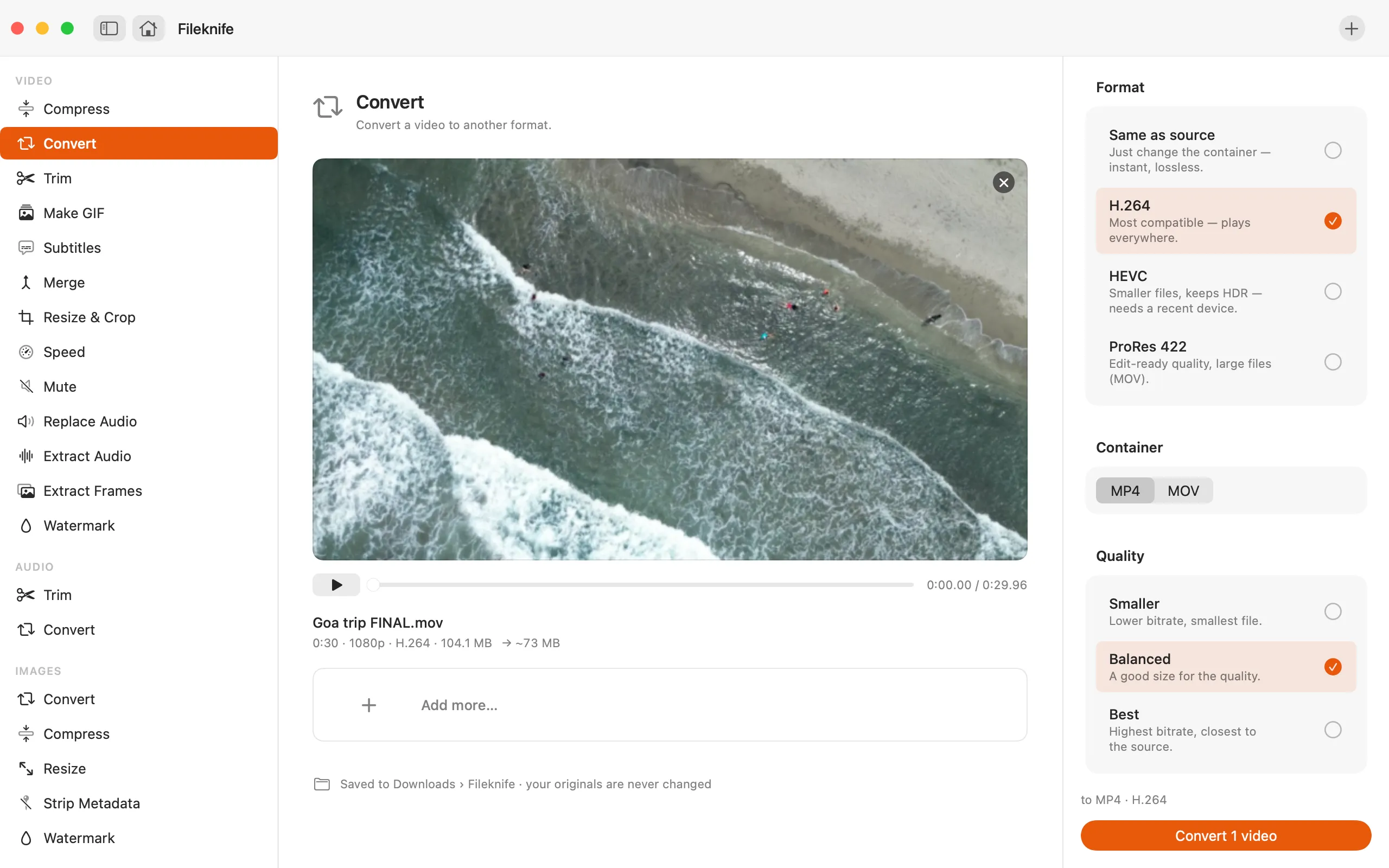
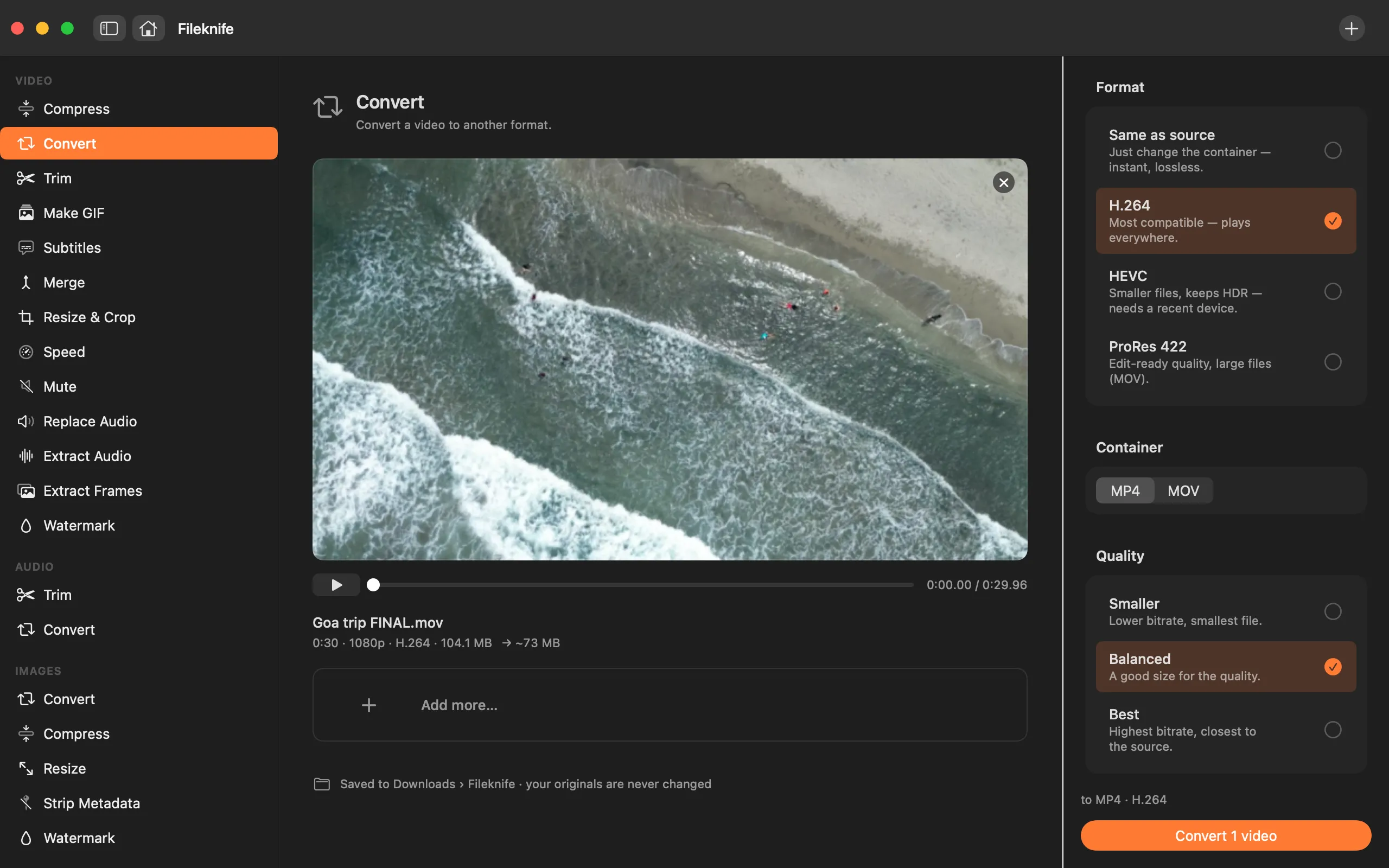
Here's the same job in Fileknife, where it stays on your Mac:
- Drop your video onto Fileknife and choose Convert.
- Pick the output: MP4 (H.264 or HEVC) or MOV.
- Add more clips to convert them together, if you like.
- Press Convert, then use Show in Finder or drag the result out.
Why reach for Fileknife
- Straightforward MP4 or MOV output with a clear H.264 or HEVC choice.
- Convert a whole batch of clips in one pass.
- Keeps the quality, it only re-encodes when the format actually requires it.
- Runs on your Mac, with no upload or conversion-site queue.
Presets and options
- MP4 · H.264
- MP4 · HEVC
- MOV
Takes: MP4, MOV, M4V and other common video formats. MKV and WebM input is coming in a later update. Gives: MP4 (H.264 or HEVC) or MOV.
Honest limits
At launch, Convert outputs MP4 and MOV; reading MKV and WebM files is coming in a later update. DRM-protected video (like purchased films) can't be converted.
FAQ
Which format should I convert to?
MP4 with H.264 is the safe, plays-everywhere choice. HEVC makes a smaller file at the same quality but needs a reasonably modern device. MOV is handy for Apple apps like Final Cut.
Can it convert MKV or WebM files?
Not at launch, reading MKV and WebM is coming in a later update. Right now Convert takes MP4, MOV, M4V and other common formats.
Will converting lose quality?
Only when the format actually needs a re-encode, and then Fileknife keeps it as close to the original as it can. Re-wrapping to a new container with the same codec is lossless.
What's the difference between Convert and Compress?
Convert changes the format or codec. Compress aims for a smaller file at a target size. If your goal is "make it send", you probably want Compress.
Be the first to know when it ships · No spam · macOS 14 Sonoma or later