Upscale an image on Mac
Enlarge a photo 2× or 4× with an on-device model.
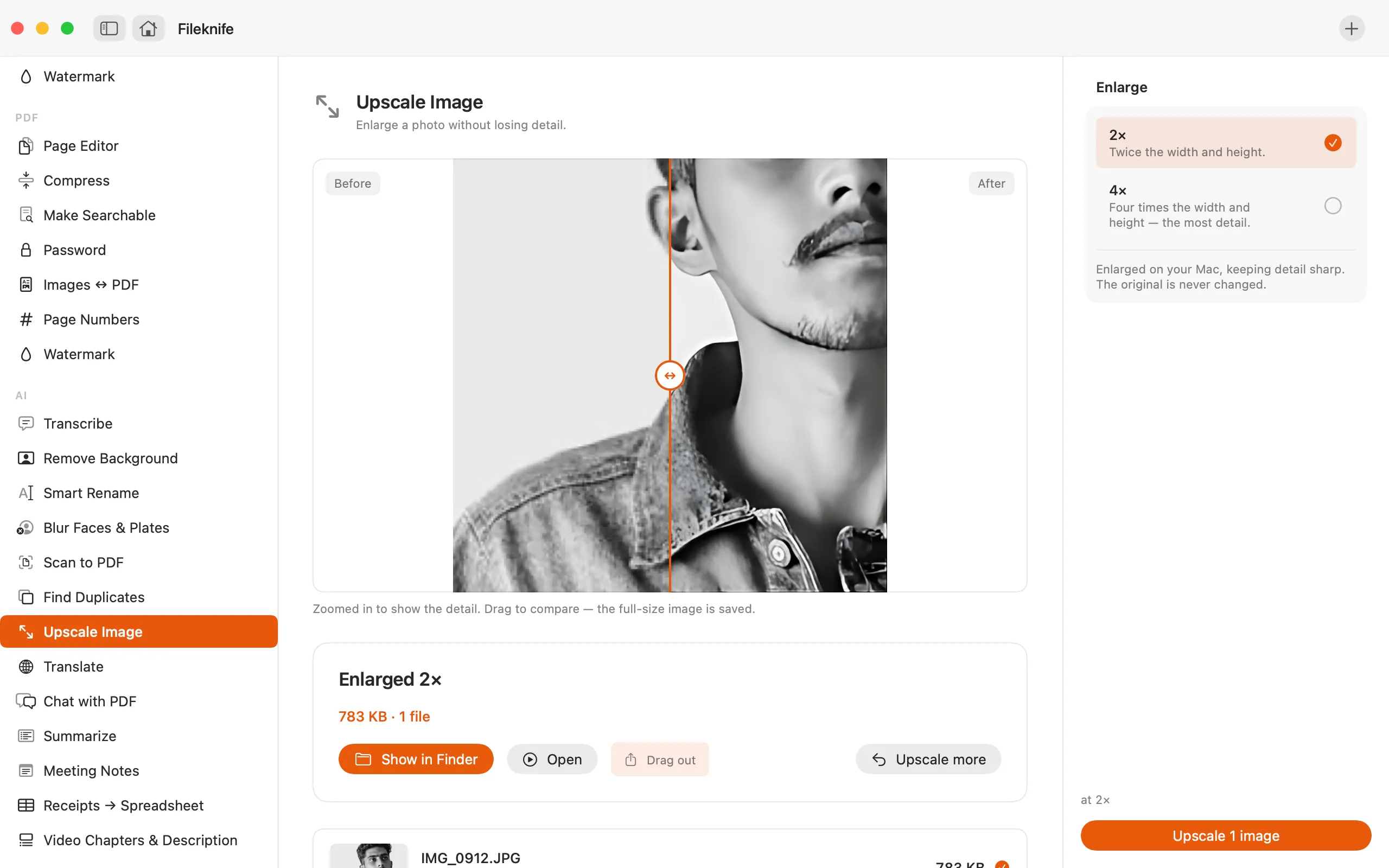
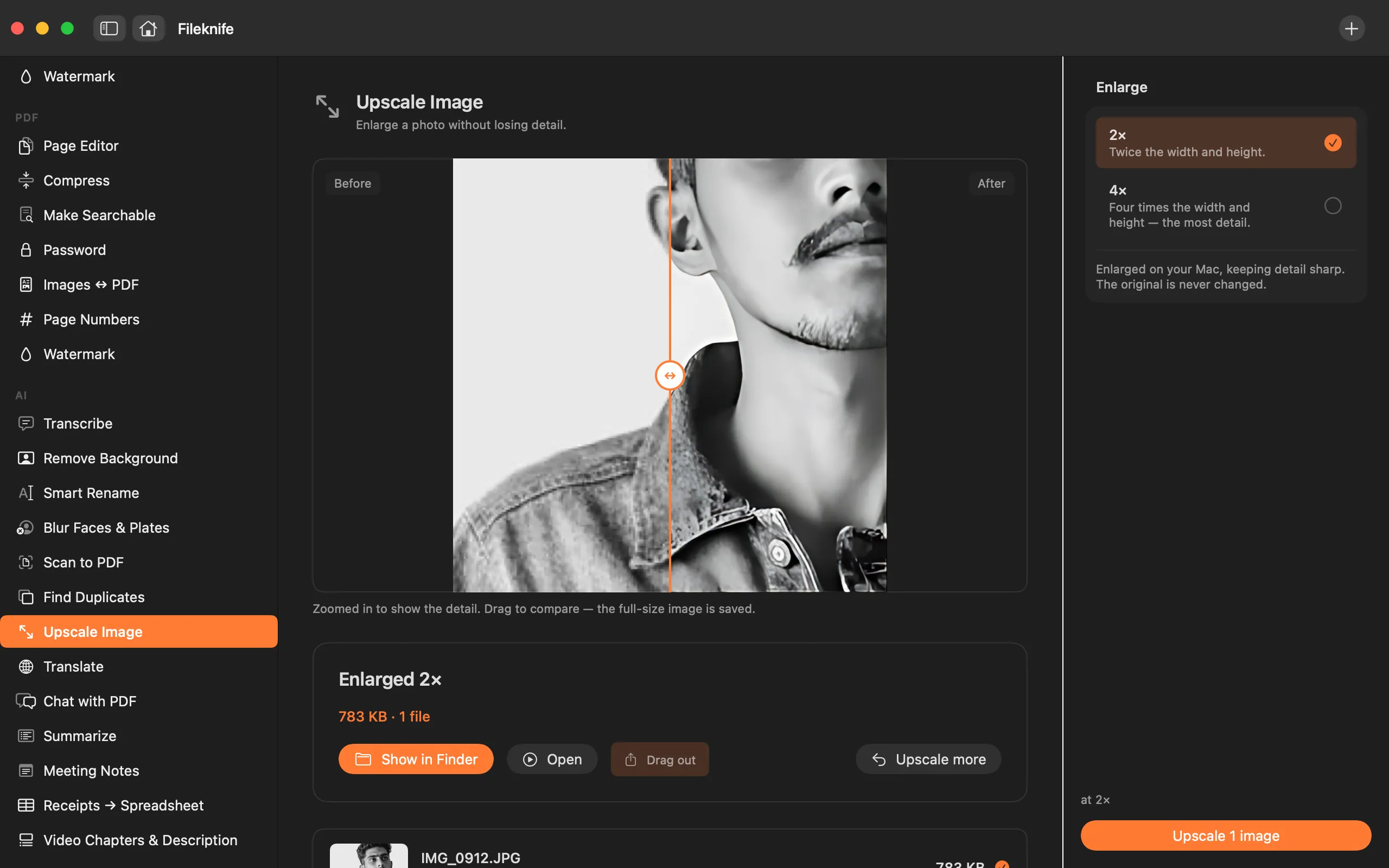
Some photos are just too small: a thumbnail you need at print size, an old low-res export, a crop that left you with a fraction of the pixels. Plain resizing stretches the pixels you already have, so the bigger it gets the softer and blockier it looks. Upscaling uses a model trained on real images to fill in plausible detail as it enlarges, so a 2× or 4× result holds together far better than a stretch, though it's reconstructing likely detail, not recovering what the camera never captured.
The free way (if there is one)
Preview can resize an image (Tools → Adjust Size), but enlarging that way only stretches the existing pixels, so the result looks soft. macOS has no built-in model-based upscaler.
macOS can resize an image for free (Preview → Tools → Adjust Size), which is fine when you're making a photo smaller. For making one bigger it just interpolates the existing pixels, so edges go soft, there's no built-in model-based upscaler. That's the gap Fileknife fills, on-device.
With Fileknife
Here's the same job in Fileknife, where it stays on your Mac:
- Drop a photo (or several) onto Fileknife and choose Upscale Image.
- Pick how much to enlarge: 2× or 4×.
- Press Upscale.
- Use Show in Finder or drag the enlarged image out.
Why reach for Fileknife
- An on-device model adds detail as it enlarges, instead of stretching pixels like a plain resize.
- Choose 2× or 4×, four times the width and height for the most detail.
- Upscale a batch of photos in one pass.
- Runs on your Mac, so your photos are never uploaded to an upscaling site or subscription.
Presets and options
- 2×, twice the width and height
- 4×, four times, the most detail
Takes: HEIC, JPG, PNG and other common image formats. Gives: An enlarged image (2× or 4× the width and height).
e.g. a 1000×1000 photo → 4000×4000 at 4×.
Honest limits
Upscaling reconstructs plausible detail; it can't recover detail that was never in the photo, so a very small or heavily compressed source won't come back perfectly sharp. 4× makes large files, four times the width and height of the original.
FAQ
How is this different from just resizing bigger?
A plain resize stretches the pixels you already have, so edges blur. Upscaling runs an on-device model that adds plausible detail as it enlarges, so the result looks sharper, especially at 4×.
Can it recover detail that's not in the photo?
No tool can truly do that. Upscaling makes a convincing, sharper enlargement by reconstructing likely detail, but it can't invent what the camera never captured, expect a better enlargement, not a new photo.
What's the difference between 2× and 4×?
4× enlarges to four times the width and height for the most detail. 2× is that 4× result scaled back to double size with a high-quality filter, a good middle ground when 4× is larger than you need.
Is my photo uploaded?
No. Upscaling runs on your Mac with an on-device model, nothing is sent anywhere.
Be the first to know when it ships · No spam · macOS 14 Sonoma or later